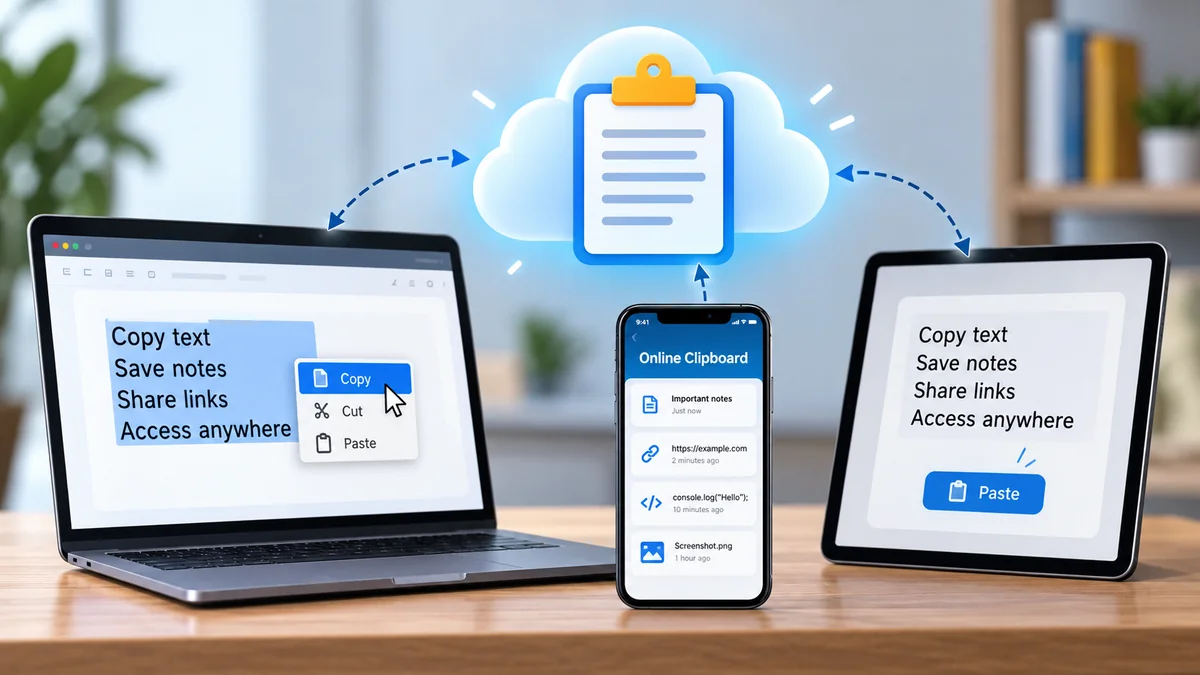
Copying text on one device and pasting it onto another should be simple. Yet the standard copy-and-paste function often stops working when you switch between computers, browsers, or operating systems.
An online clipboard offers a practical way to store, retrieve, and transfer copied content through a web browser. It can help you move notes, links, code snippets, and other information between devices without repeatedly sending yourself emails or messages.
An online clipboard is a web-based tool that lets users temporarily store and access copied text or other supported content. Depending on the service, information may be saved in browser storage or on a remote server, allowing users to retrieve it from the same device or another device using a link, code, or account.
What Is an online clipboard?
An online clipboard is a digital storage space designed to make copying, saving, and retrieving information easier through the internet.
A traditional clipboard is built into your operating system. When you press Ctrl + C on Windows or Command + C on macOS, the selected content is copied into temporary memory. You can then paste it into another application using Ctrl + V or Command + V.
However, the traditional clipboard generally works within the same device unless a synchronization feature is enabled.
A web-based clipboard can extend that functionality by making copied information accessible through a browser.
For example, imagine finding a useful paragraph while researching on your laptop. You want to continue reading it on your smartphone. Instead of emailing the paragraph to yourself, you could save it to an online clipboard and open the same saved content on your phone.
How Does an online clipboard Work?
Most online clipboard services follow a straightforward process:
- Enter or paste content: Copy text, a URL, or another supported item into the tool.
- Save the information: The service stores the content locally in your browser or remotely on its servers.
- Generate an access method: Some tools provide a unique URL, sharing code, or account-based storage.
- Open the content elsewhere: Access the saved information through another browser or device.
- Copy or download: Retrieve the content and paste it into the destination application.
The exact process depends on the platform.
Some services automatically synchronize content, while others require you to save and retrieve it manually.
Online Clipboard vs. Traditional Clipboard
| Feature | Traditional Clipboard | Online Clipboard |
|---|---|---|
| Storage | Usually device memory | Browser storage or remote server |
| Internet required | No | Often, depending on the tool |
| Cross-device access | Limited without syncing | Available with supported services |
| Sharing | Usually manual | Often through links or codes |
| Clipboard history | Depends on operating system | Depends on the service |
| Account required | No | Sometimes |
| Privacy | Usually local by default | Depends on storage and security design |
Neither approach is universally better. A traditional clipboard is usually more convenient for immediate local copying, while an online tool can be useful for transferring content between devices.
How to Use an online clipboard Step by Step
Using a browser-based clipboard generally requires no advanced technical knowledge.
Step 1: Open a Clipboard Website
Open a web browser such as Google Chrome, Mozilla Firefox, Microsoft Edge, or Safari.
Navigate to a web-based clipboard service.
Check that the website uses HTTPS and review its privacy information before entering sensitive content.
Step 2: Copy Your Content
Select the text you want to transfer.
Use the appropriate keyboard shortcut:
- Windows and Linux: Ctrl + C
- macOS: Command + C
- Android and iPhone: Select the content and tap Copy
You can copy ordinary text, website links, email addresses, programming code, or other supported information.
Step 3: Paste the Content
Click or tap the clipboard service’s text field.
Paste the copied information using your device’s paste command.
Some websites provide a dedicated Paste button. Others allow you to type directly into a text editor.
Step 4: Save or Share the Clipboard
Depending on the tool, you may see options such as Save, Create Link, Share, or Generate Code.
Follow the service’s instructions to store the content.
Some platforms save automatically, while others require you to confirm.
Step 5: Access It on Another Device
Open the saved link or enter the access code on your second device.
If the service uses account synchronization, sign in to the same account.
You should then be able to view and copy the saved information, provided it has not expired or been deleted.
Step 6: Delete Content When Finished
If the service supports manual deletion, remove the saved content once you no longer need it.
For temporary sharing, prefer tools with expiration controls or automatic deletion.
Remember that deleting a local browser copy does not necessarily remove a remotely stored version.
Different Types of Online Clipboard Tools
Not every clipboard website operates in the same way. Understanding the main categories helps explain their capabilities and limitations.
Temporary Text Clipboard
A temporary clipboard stores a small amount of text for quick retrieval.
It is useful for transferring:
- Short notes
- Website URLs
- Email templates
- Shopping lists
- Meeting information
- Small code snippets
Some temporary services automatically remove saved content after a specified period.
Others keep it until you delete it or until their storage policies trigger removal.
Cloud Clipboard
A cloud clipboard stores information on remote infrastructure so it can be accessed across supported devices.
Cloud-based services may provide account synchronization, saved entries, and clipboard history.
For example, a user working on multiple computers may use a synchronized clipboard to keep frequently used text available.
However, cloud storage introduces additional considerations involving account security, retention policies, and provider access.
Browser-Based Clipboard Manager
A browser clipboard manager helps users organize copied content through a website or browser extension.
Depending on the tool, features may include search, saved snippets, folders, labels, and reusable templates.
Browser extensions sometimes request permission to read clipboard information or website content. Review those permissions carefully before installation.
Shared Clipboard
A shared clipboard allows multiple people to access content through a common link, code, or workspace.
This can be useful during collaborative projects when teammates need to exchange short text snippets.
However, a publicly accessible sharing link should not be treated as a private communication channel.
Clipboard With File Sharing
Some web clipboard tools support images, documents, and other file formats in addition to plain text.
File support varies considerably.
A service that accepts text may not support screenshots, formatted documents, or large attachments.
Always check the supported file types and size restrictions before uploading.
Benefits of Using an Online Clipboard
Easy Cross-Device Copy and Paste
One of the main advantages is transferring content between devices that do not share a built-in clipboard.
For example, you might copy a URL on a Windows laptop and retrieve it through Safari on an iPhone.
This can be especially helpful when working across different operating systems.
No Installation for Many Services
Numerous browser-based clipboard services operate directly through a website.
This reduces the need to install dedicated software for occasional transfers.
However, automatic synchronization, background clipboard monitoring, and advanced history features may still require an app or browser extension.
Faster Sharing of Short Information
A clipboard link can simplify sharing small pieces of information.
Instead of creating a document for a short paragraph, users can place the text in a temporary clipboard and share its access link.
Better Organization of Repeated Text
Some clipboard managers support reusable snippets.
These are useful for information that must be entered repeatedly, such as standardized responses, formatting templates, or commonly used commands.
Flexible Access
A web-based service may work across Windows, macOS, Linux, Android, iOS, and ChromeOS.
Actual compatibility depends on the browser, clipboard permissions, and features offered by the service.
Is an online clipboard Safe to Use?
An online clipboard can be safe for ordinary information, but its security depends on how the service stores, transmits, shares, and deletes data.
A website using HTTPS protects data while it travels between your browser and the website’s server. However, HTTPS alone does not guarantee that the provider cannot read stored information.
What Information Should You Avoid Copying?
Avoid placing highly sensitive information into an unfamiliar or publicly shared clipboard, including:
- Passwords and account recovery codes
- Banking and payment card details
- Government identification numbers
- Private authentication tokens and API keys
- Confidential business documents
- Sensitive personal or medical information
If such information must be transferred, use a trusted service with appropriate encryption, access controls, and retention policies.
End-to-End Encryption vs. Standard Encryption
These terms describe different security protections.
Encryption in transit protects information as it moves between your device and a server, typically using TLS.
Encryption at rest protects stored information against certain forms of unauthorized storage access.
End-to-end encryption is designed so that only authorized endpoints possess the keys needed to decrypt content.
A clipboard service may offer one, several, or none of these protections.
Do not assume that a tool provides end-to-end encryption simply because it describes itself as secure.
Are Online Clipboard Links Private?
Not necessarily.
Some clipboard websites use links that allow anyone possessing the URL to access the stored content.
This is sometimes called a bearer link or secret link.
If the link is forwarded, accidentally published, or exposed through another channel, someone else may be able to open it.
For sensitive information, look for password protection, access restrictions, expiration controls, and clearly documented encryption.
How Long Is Clipboard Data Stored?
Retention periods vary by provider.
A service may store data for minutes, hours, days, or until manual deletion.
Some tools use browser local storage, which may persist across browser sessions. Others rely on session storage or server-side databases.
Private browsing mode does not guarantee that information submitted to a remote server disappears when you close the browser.
Check the service’s retention and deletion policies rather than assuming saved content is temporary.
Online Clipboard vs. Built-In Clipboard Sync
Before using a third-party website, it is worth understanding the clipboard synchronization features already available on some devices.
Windows Clipboard History
Microsoft Windows 10 and Windows 11 include clipboard history functionality.
Users can generally open clipboard history by pressing Windows + V.
The feature allows supported copied items to be viewed and reused, subject to system limits and settings.
On supported configurations, clipboard synchronization can also be enabled through Windows settings.
Clipboard history and cross-device synchronization are separate capabilities, so enabling one does not necessarily activate the other.
Apple Universal Clipboard
Apple’s Universal Clipboard allows copying content on one compatible Apple device and pasting it on another nearby device.
It works through Apple’s Continuity features and requires compatible devices with the necessary account, connectivity, and Handoff settings.
For example, you may copy text on an iPhone and paste it on a Mac.
Unlike a typical web clipboard, Universal Clipboard does not require manually opening a third-party website.
Android and Gboard Clipboard
Gboard, Google’s keyboard application, provides clipboard functionality on supported Android devices.
Users can access recent copied text and, in some cases, pin items for later reuse.
Retention behavior depends on the keyboard version and device settings.
Gboard’s clipboard should not be confused with a universal cloud clipboard that automatically shares every copied item across all devices.
Browser Clipboard API
Modern web browsers support the Clipboard API, which enables websites to interact with clipboard content under certain conditions.
Developers commonly use methods such as navigator.clipboard.writeText() and navigator.clipboard.readText().
Access is subject to browser security rules, permissions, user interaction requirements, and secure-context restrictions.
A website cannot simply assume unrestricted access to everything a user has copied.
Common Problems With Online Clipboard Tools
Even straightforward clipboard services can encounter issues.
Copy and Paste Not Working
If copying or pasting fails, first check whether the browser supports the required clipboard operation.
Some clipboard features require HTTPS, permission approval, or direct user interaction.
Try manually selecting the text and using the keyboard shortcut rather than relying on an automated Paste button.
Clipboard Content Not Syncing
If saved content does not appear on another device, check whether the service actually supports cross-device synchronization.
A tool using only local browser storage will not automatically make that content available on a different device.
Also verify that you are using the correct account, sharing code, or saved URL.
Saved Text Has Disappeared
Clipboard content may disappear because it expired, was manually deleted, or was cleared from browser storage.
Some services also limit the number of saved entries.
If the information is important, maintain a separate permanent copy rather than relying exclusively on temporary clipboard storage.
Formatting Changes After Pasting
Copying content between applications can alter fonts, spacing, hyperlinks, or other formatting.
Plain-text clipboard tools may remove rich-text formatting entirely.
For ordinary text, this is often acceptable. For formatted documents, use a service that explicitly supports rich text or the original file format.
Clipboard Website Is Not Loading
Check your internet connection and try refreshing the page.
Browser extensions, network filters, and security settings can sometimes interfere with web applications.
If the service remains unavailable, avoid repeatedly submitting sensitive information and consider using a trusted alternative.
How to Choose a Reliable Online Clipboard
Different clipboard tools serve different purposes. The right choice depends on what you need to transfer and how frequently you use the service.
| Consideration | What to Check | Why It Matters |
|---|---|---|
| Privacy | Clear privacy and retention policies | Explains how content is handled |
| Encryption | Documented security protections | Helps protect transferred information |
| Access | Links, codes, or account login | Determines how content is retrieved |
| Expiration | Automatic deletion options | Limits unnecessary storage |
| Compatibility | Supported browsers and devices | Reduces access problems |
| Content support | Text, rich text, images, files | Ensures the tool meets your needs |
| History | Saved entries and search | Useful for repeated workflows |
| Permissions | Browser and extension permissions | Helps limit unnecessary access |
Consider Your Actual Use Case
If you only need to transfer a website URL from your laptop to your phone, a temporary text clipboard may be sufficient.
If you frequently reuse dozens of text snippets, a clipboard manager with history and search may be more practical.
If your devices already support a trusted built-in synchronization feature, an additional website may be unnecessary.
Check the Privacy Policy
A trustworthy service should explain what information it collects, how long content remains stored, and whether users can delete it.
Look for information about third-party processors, account security, and data handling.
A vague claim such as “100% secure” is not a substitute for documented protections.
Practical Uses of an Online Clipboard
Students and Researchers
Students can use a clipboard to transfer short notes, references, and useful links between devices.
For example, a student researching on a desktop computer might save a citation URL to retrieve later on a tablet.
For academic work, preserve the original source information so copied material can be cited accurately.
Writers and Content Editors
Writers often reuse outlines, formatting instructions, and short text templates.
A clipboard manager can help organize these snippets and reduce repetitive typing.
However, long-form articles and important drafts should be stored in a proper document editor with reliable saving and version history.
Developers and Programmers
Developers frequently copy code snippets, terminal commands, JSON examples, and configuration text.
A web clipboard can make it easier to move non-sensitive snippets between development environments.
Before pasting commands into a terminal, inspect them carefully. Copied commands can contain unexpected or malicious instructions.
Never share private keys, access tokens, or production credentials through an untrusted clipboard service.
Remote Teams
Remote workers can use shared clipboard tools for short, temporary exchanges.
Examples include meeting links, draft headings, or publicly shareable reference text.
For confidential collaboration, use an approved organizational platform with appropriate access controls.
Everyday Smartphone Users
A mobile user might save a long URL or shopping list on one device and retrieve it on another.
This can be helpful when the devices use different operating systems and do not have built-in clipboard synchronization.
Best Practices for Managing Clipboard Content
A few habits make clipboard tools more useful and reduce unnecessary risks.
- Use the simplest suitable tool. Built-in clipboard functions are often enough for local copying.
- Avoid storing sensitive data. Treat unfamiliar web clipboard services as unsuitable for passwords and confidential information.
- Set expiration limits. Prefer short retention periods for temporary content.
- Check sharing permissions. Understand who can access a saved link or code.
- Review browser extensions. Install only trusted extensions and limit unnecessary permissions.
- Keep important backups. A temporary clipboard is not a substitute for permanent document storage.
- Delete unused entries. Remove information you no longer need when the service supports deletion.
- Verify pasted content. Check formatting, links, and commands before using them.
One especially useful habit is separating temporary transfers from permanent storage.
A clipboard is excellent for moving a short piece of information. A document editor, note-taking application, or secure file storage service is generally more suitable for preserving important material.
Can You Create Your Own Online Clipboard?
Yes. A basic browser-based clipboard can be created using HTML, CSS, and JavaScript.
For a simple local tool, a developer can use a text area, browser storage, and the Clipboard API.
For example, the JavaScript method below copies text to the system clipboard when called in a permitted browser context:
async function copyText(text) {
  await navigator.clipboard.writeText(text);
}
The method typically requires a secure context and may need to be triggered by a user action.
To create a clipboard that works across devices, the application generally needs additional infrastructure.
This may include a backend server, database, authentication system, access controls, and a mechanism for retrieving saved content.
Why Security Matters in Clipboard Development
Developers should treat submitted clipboard content as untrusted input.
A secure implementation should consider:
- HTTPS connections
- Authentication and authorization
- Secure sharing identifiers
- Rate limiting
- Input validation
- Protection against cross-site scripting
- Data expiration and deletion
- Encryption where appropriate
If users can share clipboard links publicly, developers should also prevent accidental indexing of private content and avoid exposing sensitive information through predictable identifiers.
A simple demonstration application is relatively easy to build. A secure, reliable multi-user clipboard service requires considerably more planning.
The Future of Online Clipboard Technology
Clipboard functionality is increasingly connected to cross-device workflows, browser security, and productivity software.
Modern systems already demonstrate several approaches, including operating-system clipboard history, nearby-device sharing, and account-based synchronization.
Future improvements may focus on more consistent cross-platform behavior, stronger privacy controls, and better integration with applications.
However, convenience and privacy must remain balanced.
Automatic synchronization can save time, but indiscriminately uploading everything copied by a user would create significant security concerns.
The most useful clipboard systems are those that make it clear what is being saved, where it is stored, who can access it, and when it will be deleted.
Final Thoughts
An online clipboard is a convenient way to copy, store, retrieve, and share information through a web browser. It can simplify moving text between computers, smartphones, and operating systems, particularly when built-in clipboard synchronization is unavailable.
The main differences between clipboard tools involve storage, cross-device access, supported content, privacy, and retention policies.
For everyday notes and links, a simple temporary clipboard may be sufficient. For frequent reuse, clipboard history and organization features can be valuable.
Before using any online clipboard, check how the service handles your data and avoid submitting confidential information to unfamiliar platforms. Choosing a tool with suitable security controls and deleting temporary content when finished will help keep your workflow both efficient and responsible.